

About EndNote Fusion (Formerly RefWorks)
EndNote Fusion is a reference management tool that helps you collect, organize, and use research information. You can use EndNote Fusion to save references, organize your research, create citations and bibliographies, collaborate, and work with references while writing.
All UAGC students and faculty have access to EndNote Fusion through their UAGC account.
Already using RefWorks? Your existing RefWorks account and content will automatically transfer to EndNote Fusion. Your references, folders, attachments, tags, citation styles, projects, settings, and sharing permissions will transfer automatically. No action is required to migrate your account.
To get started with your EndNote Fusion account, go to https://fusion.endnote.com/. Select Create account and enter your institutional email address (firstname.lastname@student.uagc.edu) and create a password.
NOTE: You can change the email address you use for EndNote Fusion at any point by going to your Settings, but when you create your account, you must use your institutional email address for verification.
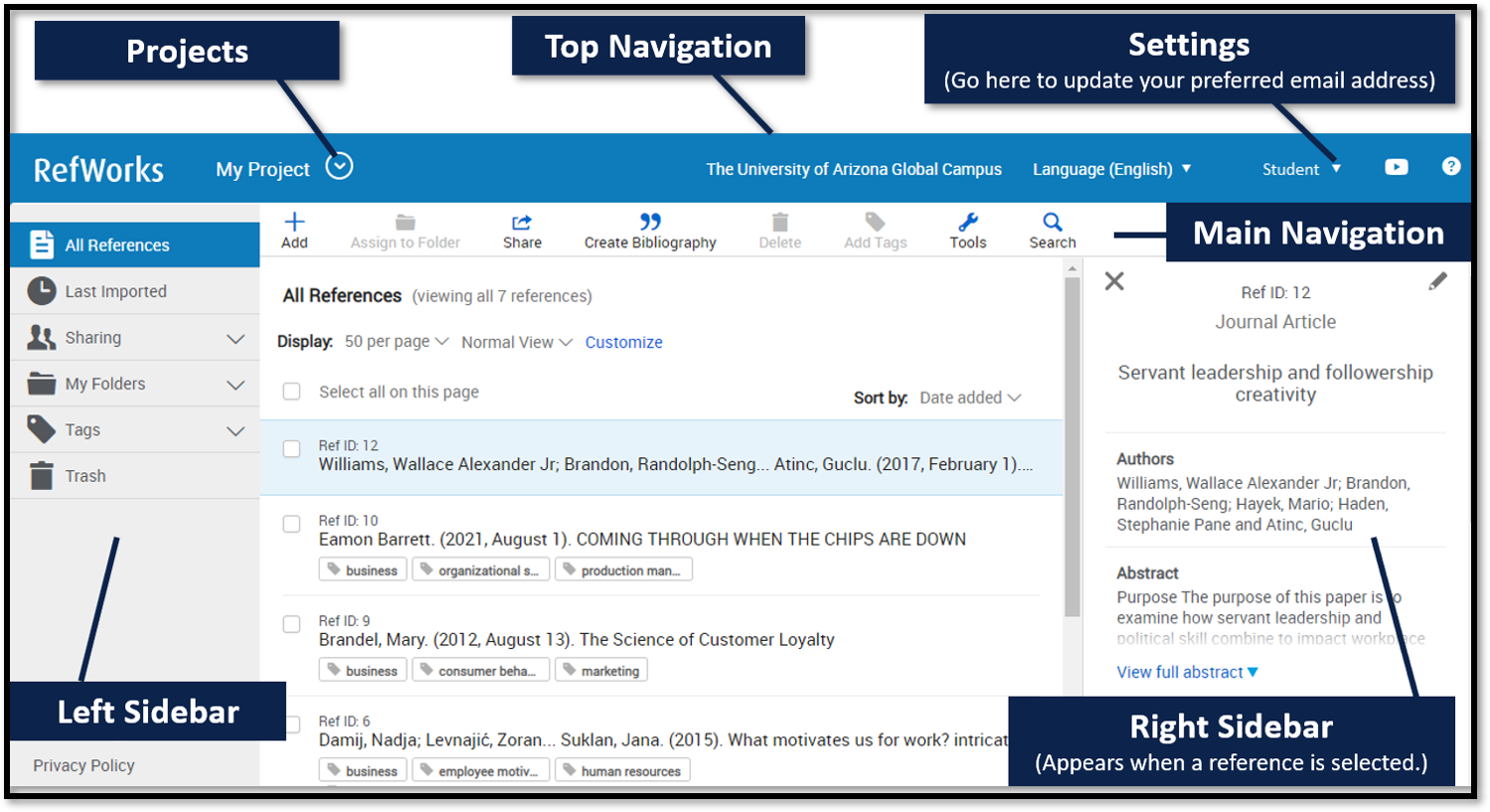
- EndNote Fusion has a Top Navigation bar. Selecting the drop-down menu in the top-right corner will take you to your Settings, where you have the option to update your preferred email address and make other changes to your account. You can manage your Projects by clicking the drop-down menu in the top-left of the top navigation bar.
- The Main Navigation bar is just below the Top Navigation bar and provides tools to add references, share references, create a bibliography, delete, add tags, access tools, and search.
- The Left Sidebar provides tools to view your last imported references, sharing settings, organize folders, organize tags, and access your trash.
- The Right Sidebar appears when a reference is selected, edited, or added and provides tools to edit your references.
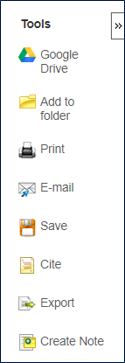
EndNote Fusion offers tools to help with your research. To access these, click on Tools in the Main Navigation.
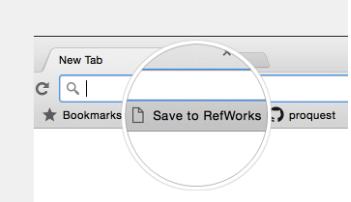
Save to EndNote Fusion
By installing the Save to EndNote Fusion plug-in in your browser, you will be able to save a reference or article, including full text (if available) from any website into your EndNote Fusion account.
Add-ons for Microsoft Word and for Google Docs
These add-ons allow you to quickly insert citations and a bibliography to your document using references from your account. Follow the details in the Tools section to identify the add-on relevant for you and follow the installation instructions.
Note: No action is required for existing RefWorks Citation Manager (RCM) users. The writing tools will work seamlessly without reinstallation or additional downloads.
There are several ways to add references into EndNote Fusion.
Exporting References From the Library
- When you find a resource in the UAGC Library that you want to save in EndNote Fusion, look for the Export tool available in the toolbar for most library databases.
- Direct Export to EndNote Fusion should be selected. Select Save to have the Citation saved in EndNote Fusion.
- The EndNote Fusion login screen will open in a new window. Enter your email address and password to login. You can either choose a folder to import the reference to, or click Import to add it to your All References page.
Adding References From EndNote Fusion
- Begin in the Main Navigation and click on +Add:
- Upload Document – these are documents from your own computer files. Example: PDF, PPT, Word Doc. They can also be uploaded with drag and drop anywhere on the All References page or Import References page.
- Import References – allows you to import reference files from other reference managers, from legacy RefWorks and from other sources.
EndNote Fusion supports the full research process and provides a variety of options to help you better organize references.
Left Sidebar:
- All References – Contains all references in the project.
- Search Databases – Used to search for items in external linked databases.
- Last Imported – Displays references imported in the last 30 days.
- Sharing – Enables you to view folders that were shared with you.
- My Folders – Allows you to organize references into folders and subfolders. A single reference can be in multiple folders.
- Not in Folder – Displays references that have not yet been moved into a folder.
- Tags – includes tags assigned to references that are imported and tags created by you when adding references. A reference can have multiple tags.
- Deleted – Contains all items that have been deleted.
ORGANIZING REFERENCES IN FOLDERS
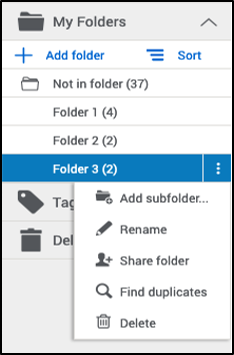
- To add a folder:
- Click on +Add folder
- Name your folder
- Click on Save
- To add a subfolder:
- Click on the selected folder’s three-dot menu icon (on the right)
- Click on Add subfolder...
- Follow prompts to name and save the subfolder.
You can sort folders alphabetically or drag and drop in your preferred order. You can toggle between the two sorting options using the Sort option under My Folders. When choosing the custom option, your latest custom sorting is restored.
ORGANIZING REFERENCES IN FOLDERS
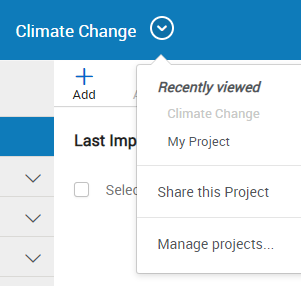
References can also be organized into projects, but most users will find they can organize their references sufficiently by using folders. Your EndNote Fusion account has a default project called Untitled Project. You can change the name and create new projects in the Manage projects page.
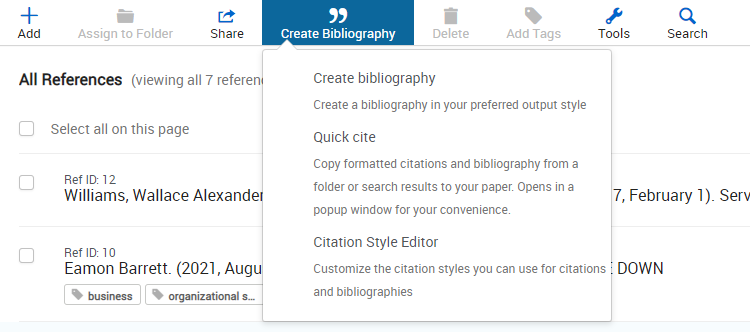
You can create in-text citations and a bibliography (also known as your reference citations) from selected references or folders.
- Navigate to the page or folder of references you want to use.
- Click on Create Bibliography in the Main Navigation.
- Click on Quick cite.
Choose your preferences:
- Citation Style Editor: EndNote Fusion will remember the last citation style you used. You can change styles by clicking on the style name and either searching for a new style or selecting from the displayed list.
- Insert Citations: Select the references for which you would like to create citations. As you select references, their corresponding citations will be displayed in the text box.
- Click on the clipboard icon, navigate to your document and paste the formatted citations. Don’t forget to save your paper when you're done!
- Click on Continue to bibliography to generate a bibliography which you can copy and paste into your document. You can also click on Create Bibliography in the main Navigation and then again on Create Bibliography to skip creating citations.
Note: Citations exported from databases can often have mistakes in output style. Always double-check your citations – the Writing Center’s Introduction to APA guide can help.
Note: This video tutorial will be updated soon with the new EndNote Fusion environment.
The Getting Started with EndNote Fusion tutorial demonstrates how to create a account, how to import and organize references into your EndNote Fusion account, and how to use EndNote Fusion tools such as the Save to EndNote Fusion browser button and the Reference Citation Manager add-in for Microsoft Word.
For additional help using EndNote Fusion, try these resources:
- Find video tutorials and contact support using the buttons in the top right corner of the Top Navigation bar.

- For tech support, please Submit a case to the EndNote Fusion Support Center, or contact them by email: fusion.endnote.support@clarivate.com
- You can also contact the UAGC Library for support: library@uagc.edu